Here you will find, in one place, everything you need to know to navigate the platform, understand the course structure, download your certificates, manage your account, and review the recommended learning paths to make the most of our training website.
Access your Courses
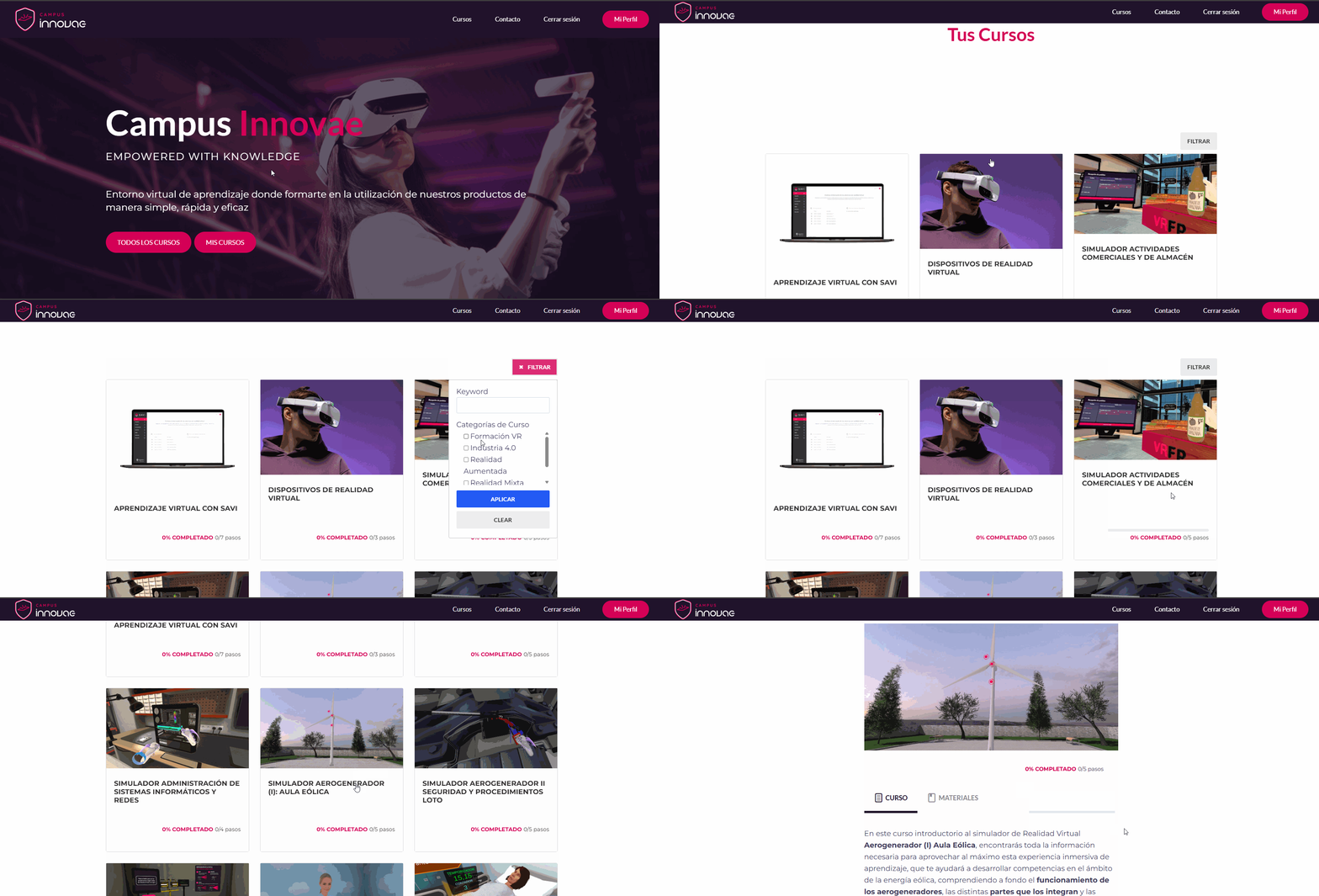
From the home page, the MY COURSES button will take you directly to the grid showing all the courses in which you are enrolled. You can filter by category or search by keyword.
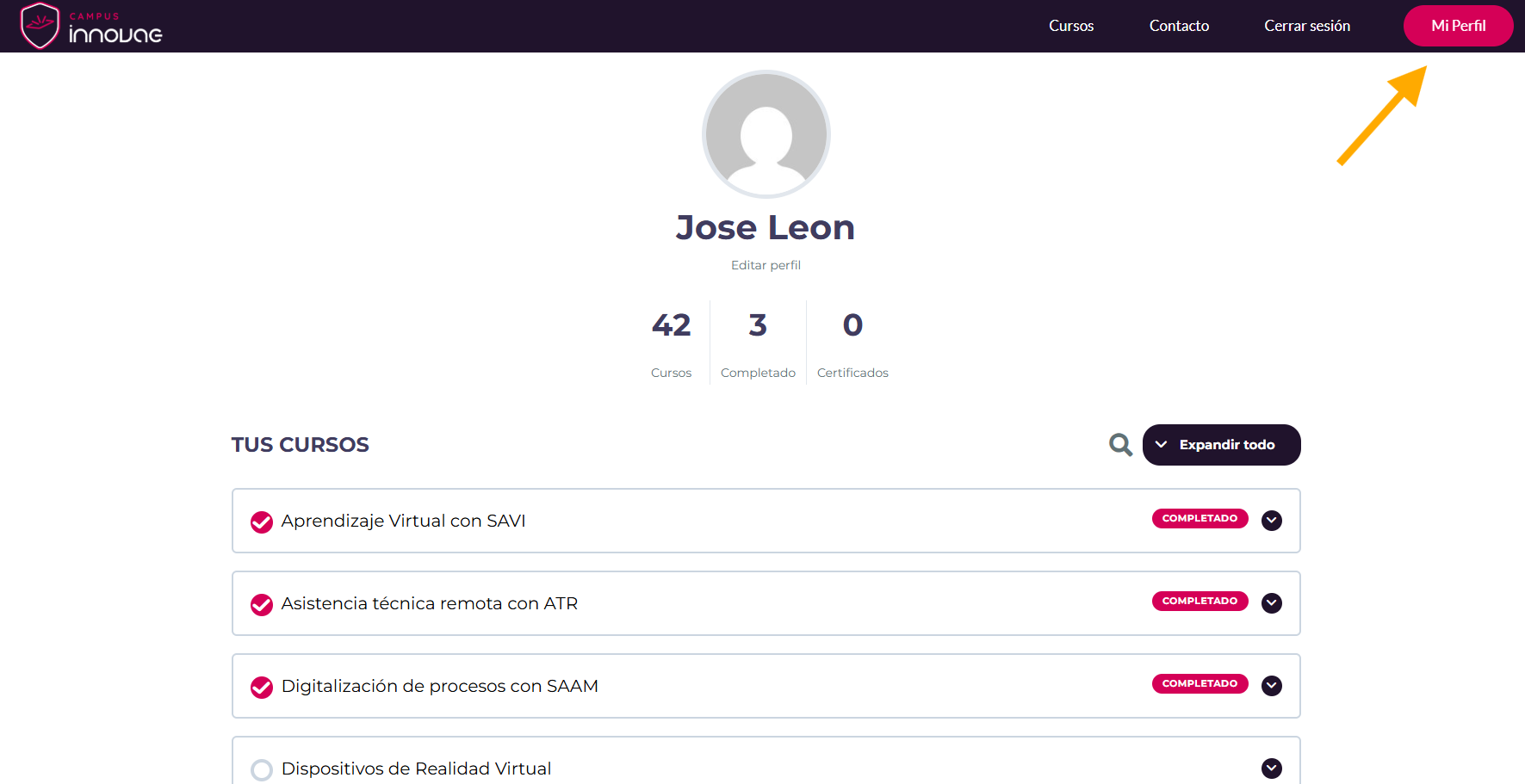
You can also access your courses from your profile, available in the top menu. There you will see the full list of your courses along with your progress in each lesson and quiz.
Course Navigation and Structure
Courses are organized into lessons, some of which include quizzes to assess your progress. In certain courses, you will need to progress sequentially. Each lesson must be marked as completed in order to unlock the next one. If a lesson includes a quiz, you must successfully complete it to move forward.
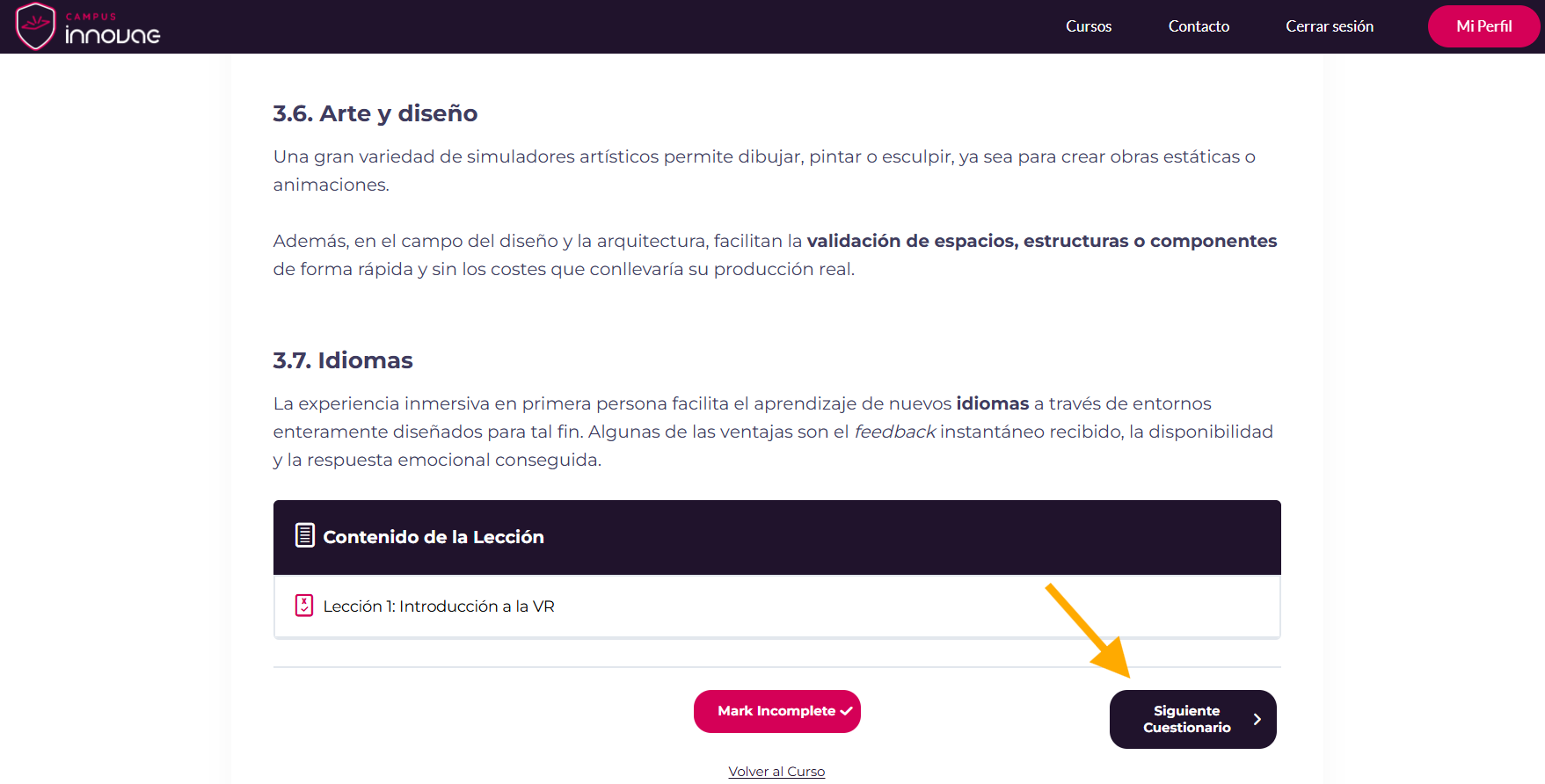
Quizzes typically require a minimum score of 80%, and all questions must be answered for the quiz to be considered completed. You may retake a quiz as many times as needed.
As you unlock lessons, you will be able to access them from the course’s table of contents. Remember that if you wish to return to a previous section at any time, you can do so using the top navigation bar.

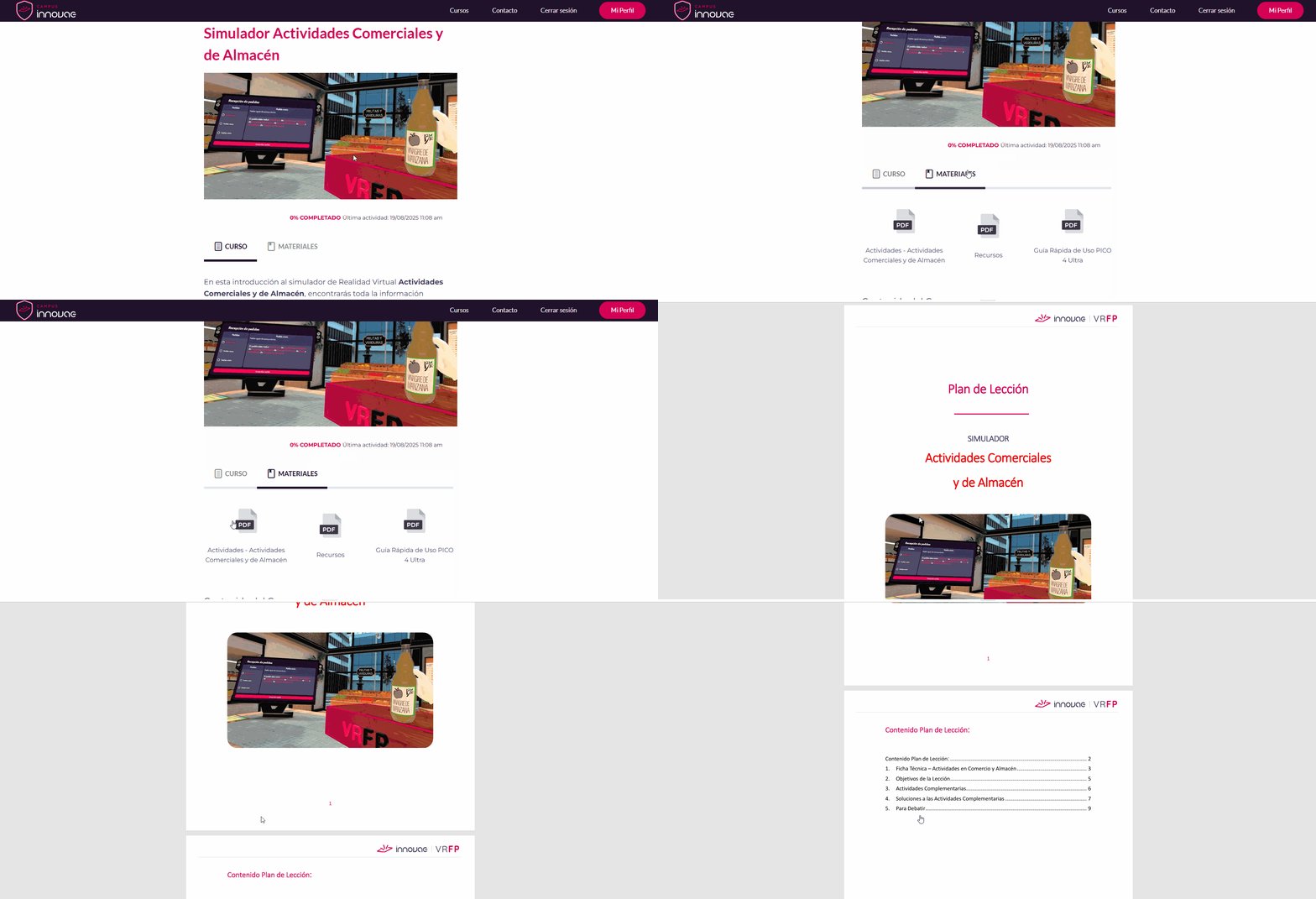
In the MATERIALS section, you will find highly useful downloadable documents, additional learning activities for classes using simulators, quick-start guides for your virtual reality device, and user manuals for our solutions.
Certificates
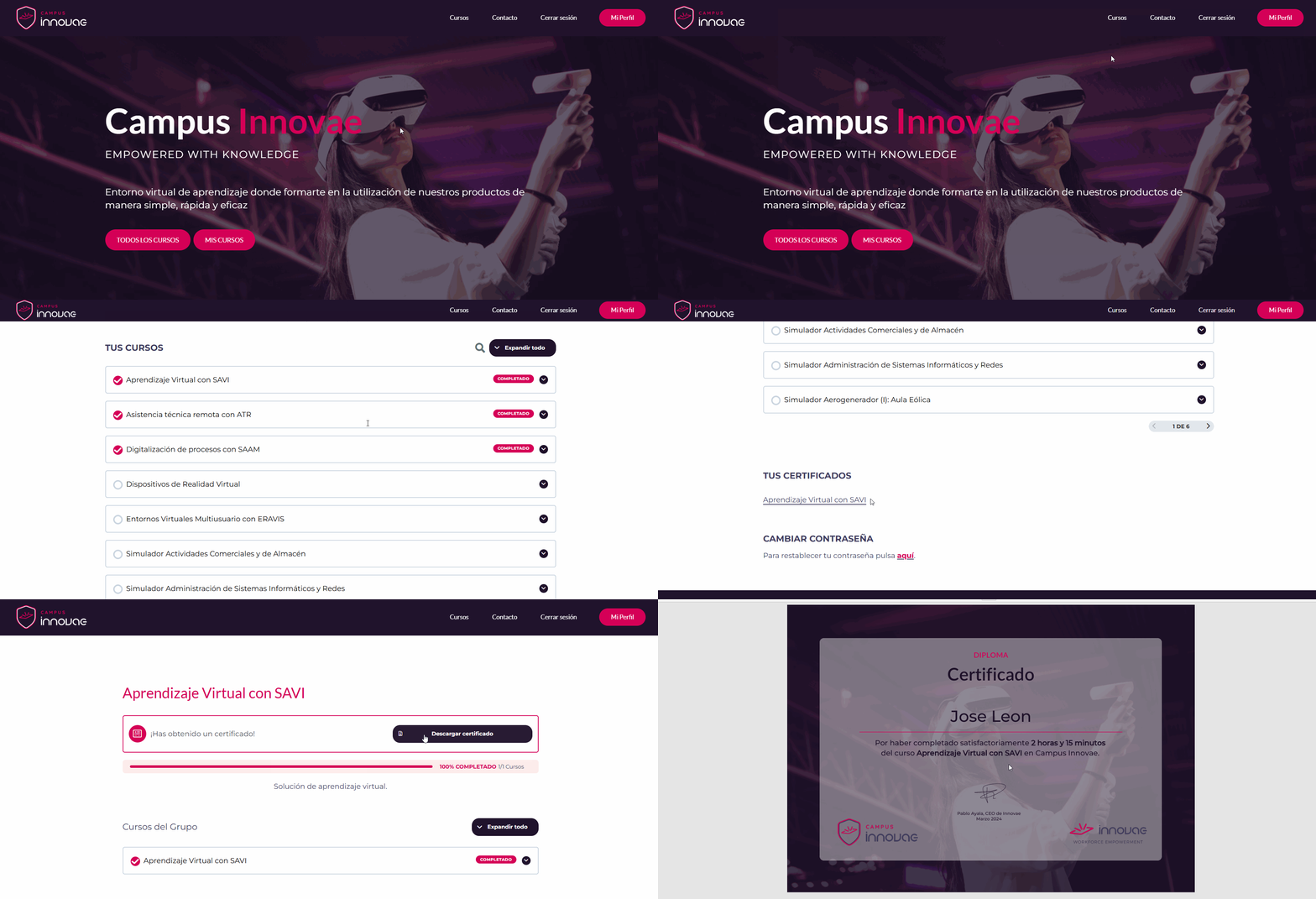
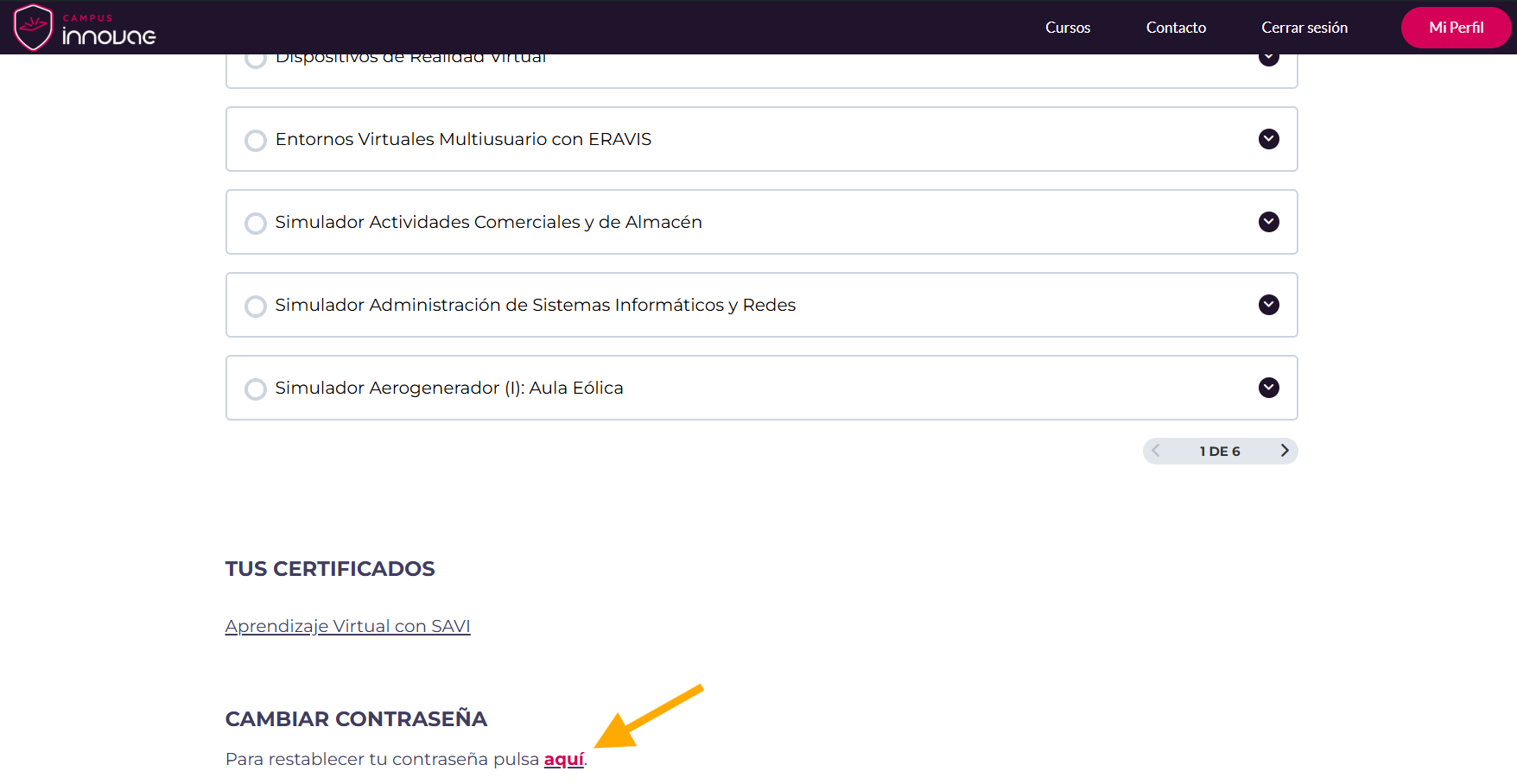
Upon completing certain courses, you will receive a certificate of completion, which you can download from the YOUR CERTIFICATES section within your profile. Please note that some certificates are only issued once a complete learning pathway has been finished.
Learning Pathway
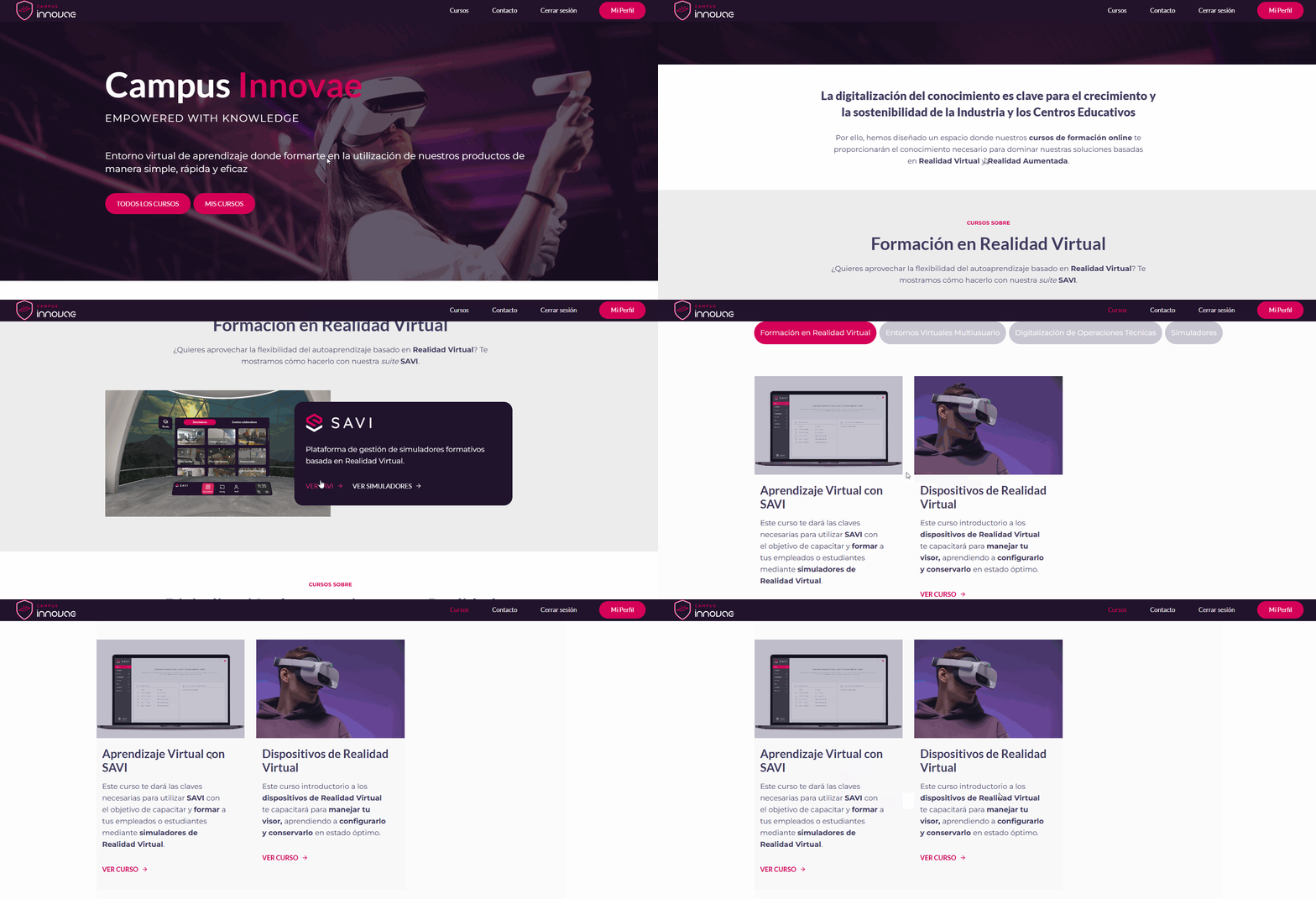
Start by finding the solution you are interested in on the home page and access the related courses via the View Courses link.
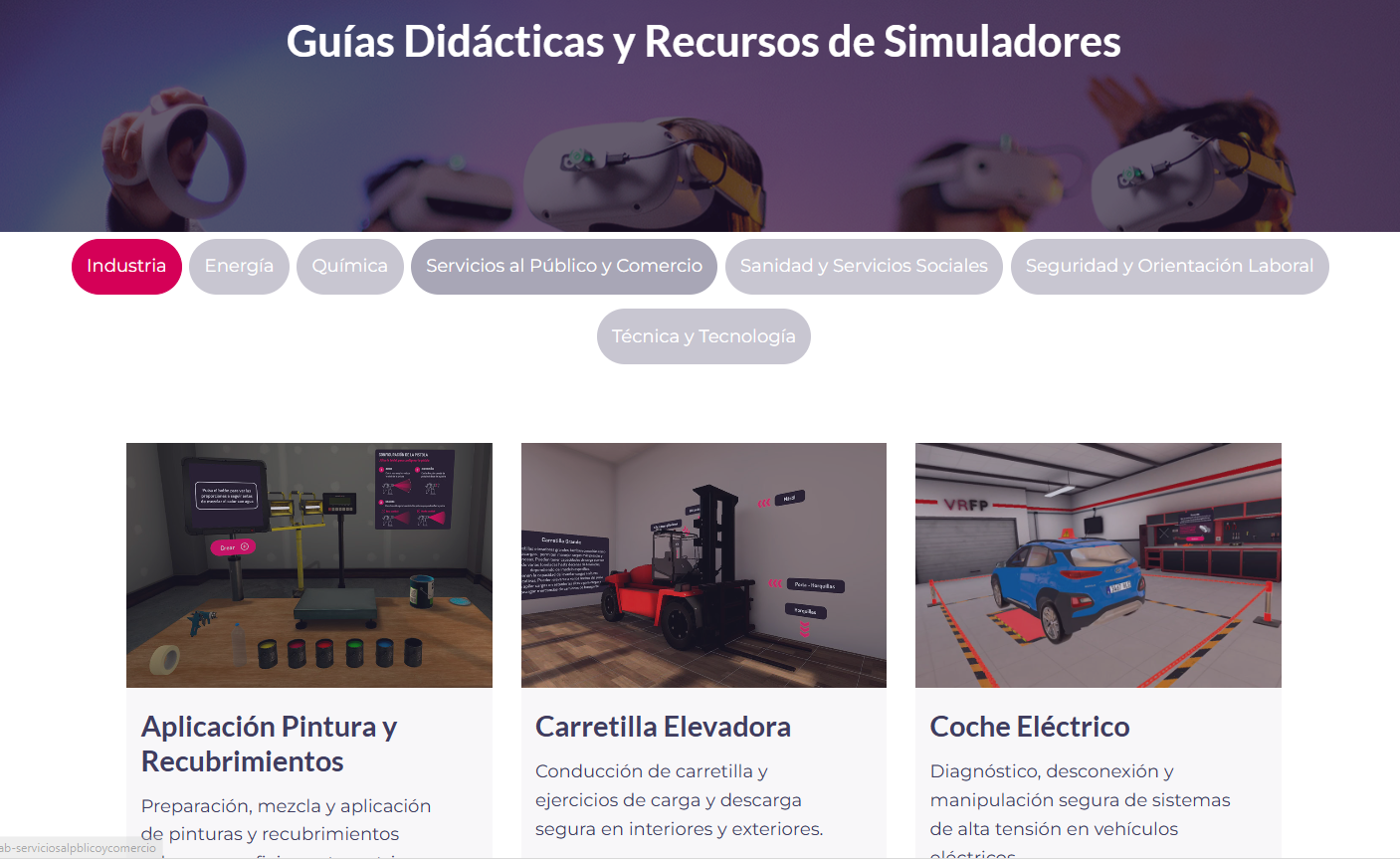
In addition, documentation for all our simulators is available and organized by subject area through the View Simulators link.
User Management
From your profile page, you can change your password at any time using the same email address with which you registered your account.
If you wish to deactivate a user and register a new one, your organization can request this by contacting us via email.: campus@innovae.com.